Browse the docs
Docs›More
Theme: Match X, Light, Dim or Dark FREE
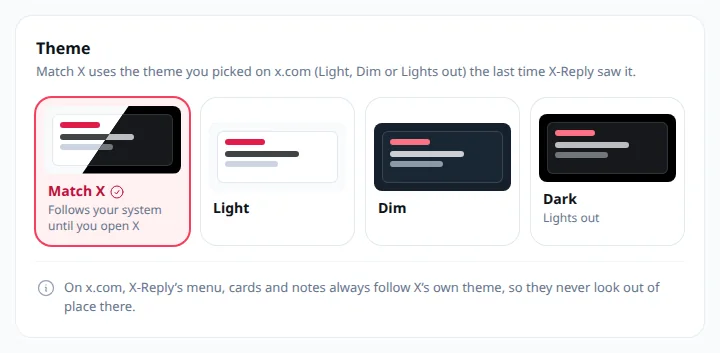
Choose how X-Reply’s Settings, popup and welcome page look: Match X (the theme you use on x.com), Light, Dim or Dark.
Free for everyoneAdded in 2.33.0Settings › Appearance
Step by step
- 1Open Settings › Appearance (the gear in X-Reply’s popup, then Appearance in the list).
- 2Pick a theme. Match X (the default) uses the theme you picked on x.com, Light, Dim or Lights out, the last time X-Reply saw it; until you open X with X-Reply on, it follows your computer’s light or dark setting. Light, Dim and Dark keep that look whatever X uses.
- 3Settings, the toolbar popup and the welcome page switch at once, also in tabs that are already open. The choice follows your Chrome profile to your other computers.
- 4On x.com, X-Reply’s menu, cards and notes always follow X’s own theme, so they never look out of place there.
See it in action · 0:09On a demo X page with made-up people. Nothing is posted.
- Open Settings › Appearance
- Pick Match X, Light, Dim or Dark
- Settings, the popup and the welcome page change at once
If something goes wrong
- Match X shows Light while X is dark
- X-Reply learns X’s theme on x.com. Open or reload an x.com tab once with X-Reply on: Settings and the popup switch right away.
- X-Reply’s menu on x.com ignores my choice
- On purpose: on x.com X-Reply follows X’s own theme. Change it in X’s Settings › Accessibility, display and languages › Display.
Still stuck? Help and contact.